Set the Billboard Mode of the material to Particle Billboard, set particles_anim_h_frames and particles_anim_v_frames to the columns and rows of your sheet, then set anim_speed_min and anim_speed_max on the process material to 1.
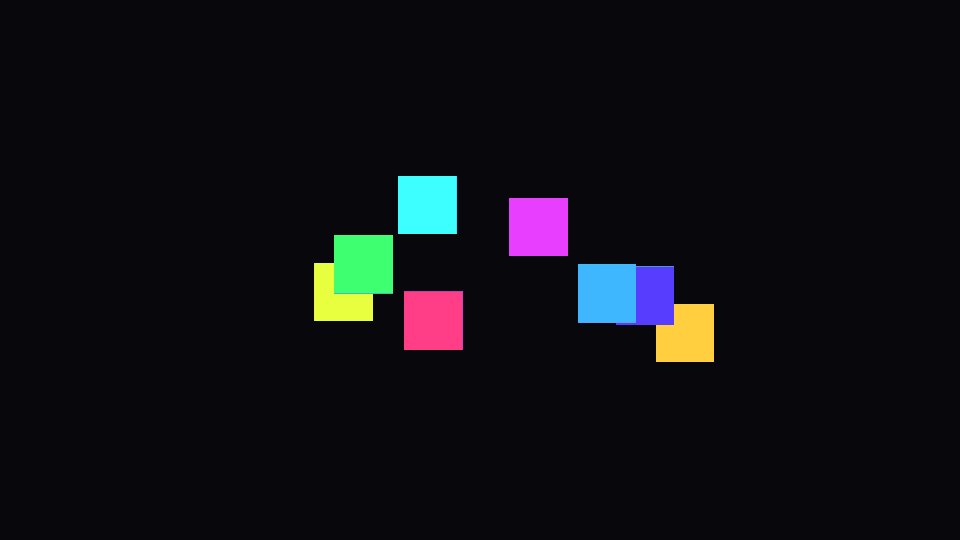
The code
extends Node3D
## Particles that play a flipbook. Set sheet to your texture and match the frame counts.

@export var sheet: Texture2D
@export var columns := 8
@export var rows := 8

func _ready() -> void:
	var mat := StandardMaterial3D.new()
	mat.shading_mode = BaseMaterial3D.SHADING_MODE_UNSHADED
	mat.transparency = BaseMaterial3D.TRANSPARENCY_ALPHA
	mat.vertex_color_use_as_albedo = true
	mat.albedo_texture = sheet
	mat.billboard_mode = BaseMaterial3D.BILLBOARD_PARTICLES  # the frame settings only work in this mode
	mat.particles_anim_h_frames = columns
	mat.particles_anim_v_frames = rows
	mat.particles_anim_loop = false

	var quad := QuadMesh.new()
	quad.material = mat

	var process := ParticleProcessMaterial.new()
	process.gravity = Vector3.ZERO
	process.anim_speed_min = 1.0  # 1 = one full run through the sheet per particle lifetime
	process.anim_speed_max = 1.0

	var fx := GPUParticles3D.new()
	fx.amount = 4
	fx.lifetime = 1.0
	fx.process_material = process
	fx.draw_pass_1 = quad
	add_child(fx)
You see the whole sheet on each particle
That is the wrong Billboard Mode. With our test sheet of 16 colored frames, Billboard Enabled showed many frames at once, and Particle Billboard showed one.
The particle stays on one frame
The animation speed is 0. In our test the frame did not change at speed 0 and did change at speed 1. A speed of 1 plays the whole sheet once per particle lifetime.
Tested in Godot 4.7 with the Compatibility renderer.
Want ready-made effects? Try the free Arcane VFX pack or the VFX Collection for Godot 4.